Once this is on, your eligible activities count in Harry's automatically. No screenshots or links.
Harry's reads runs, rides, swims, workouts and calories from Apple Health. Not every challenge uses this data; each challenge in the app shows what it tracks.
-
Open Garmin Connect
Open the Garmin Connect app on your phone, not on the watch.
-
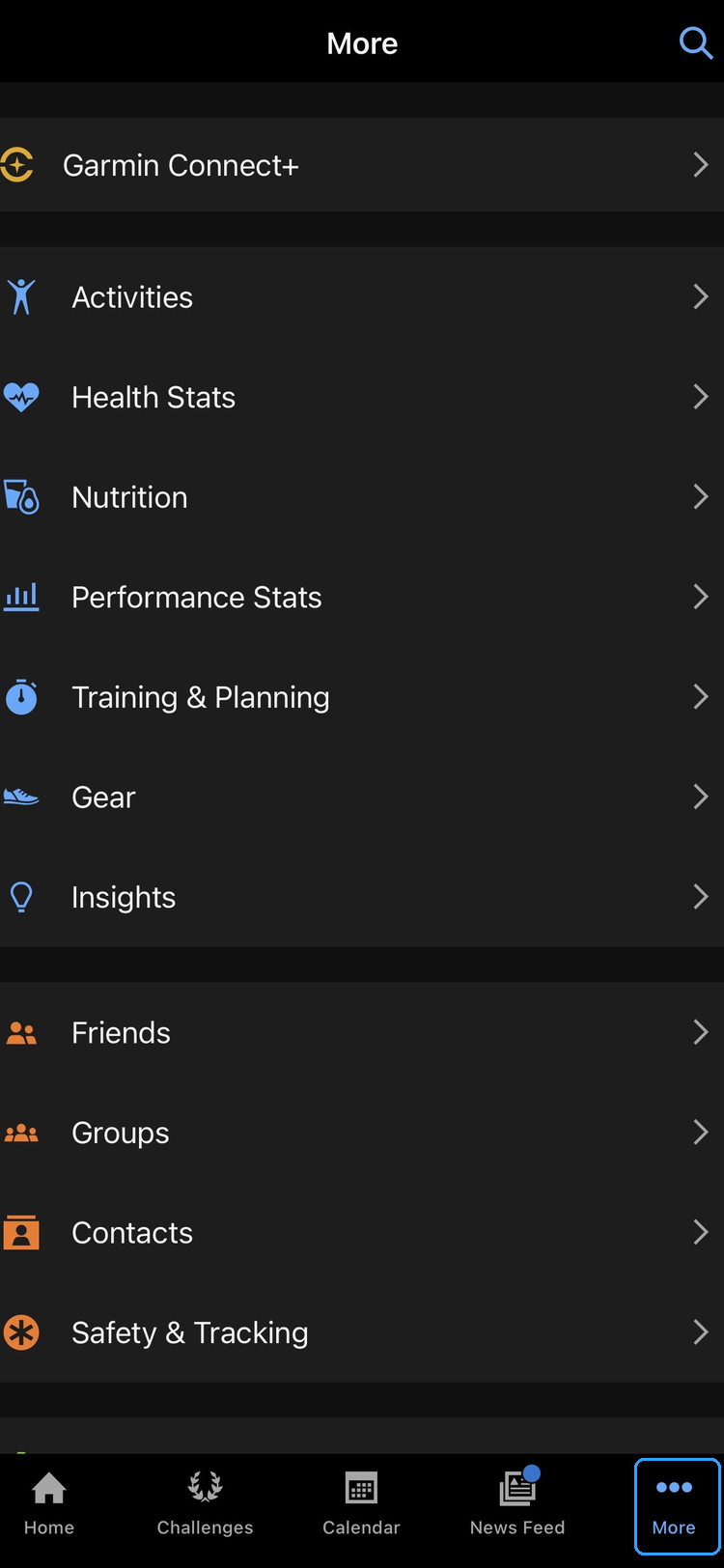
Tap More
Tap More in the bottom-right corner.
-
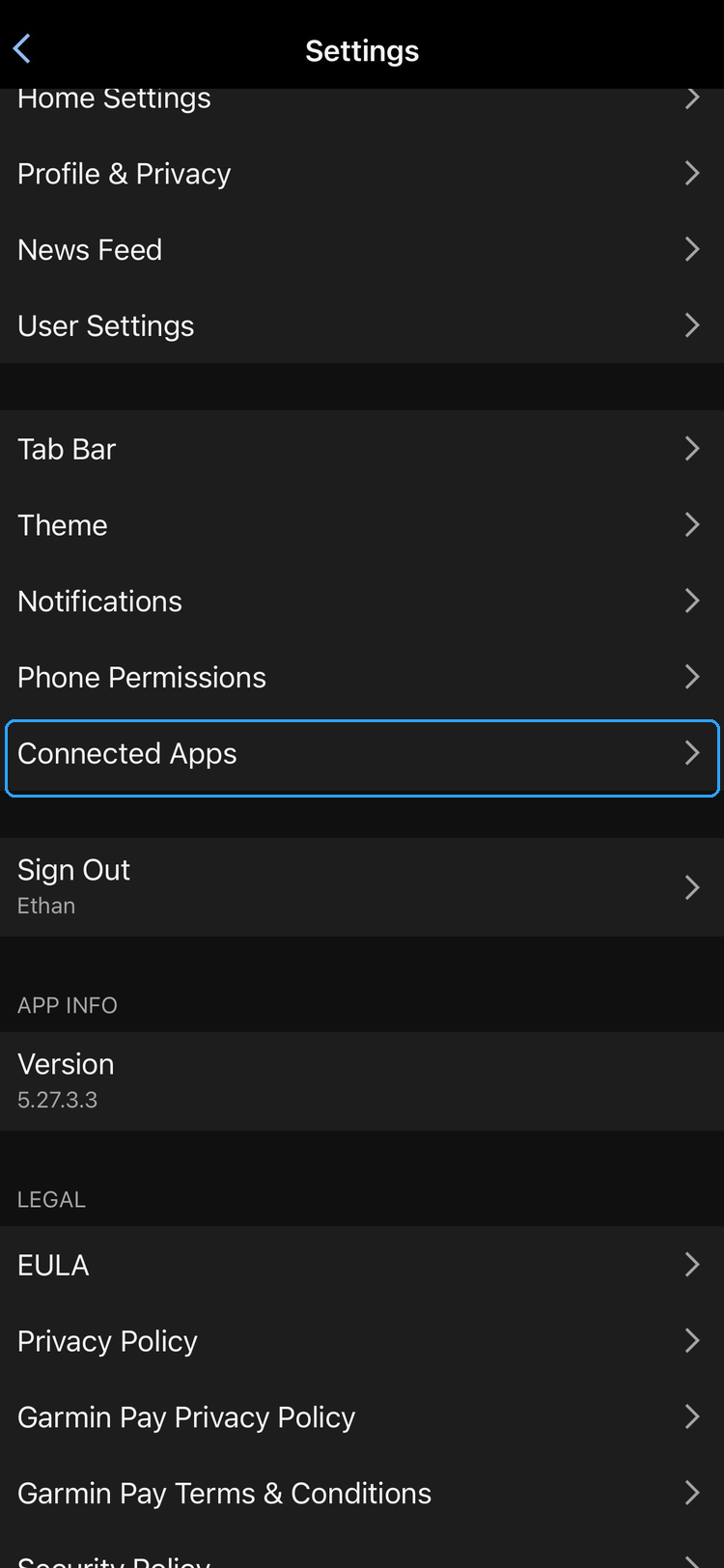
Go to Connected Apps
Scroll down and tap Settings, then Connected Apps. On older versions of the app this is labelled 3rd-Party Apps.
-
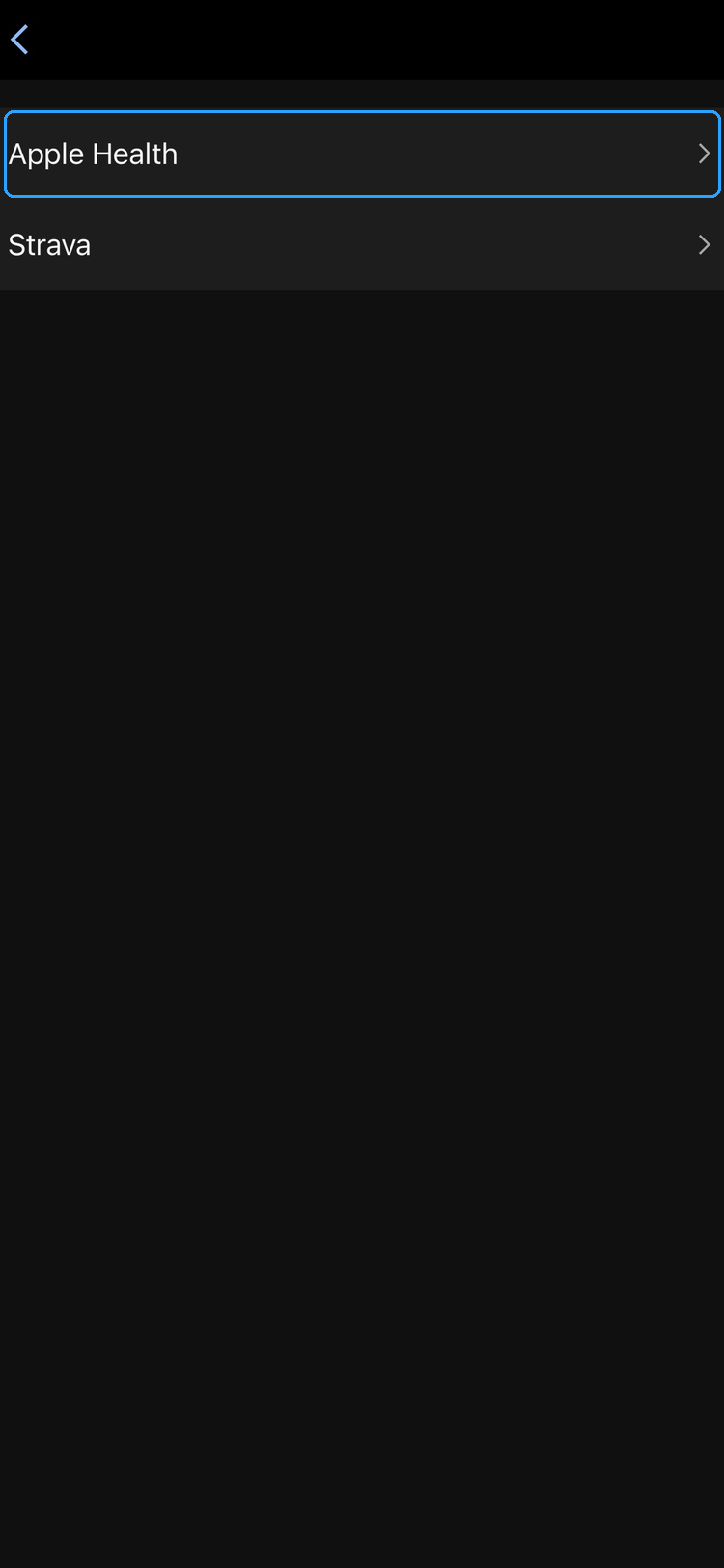
Connect Apple Health
Select Apple Health and tap Connect with Apple Health.
-
Allow access
On the permission screen, tap Turn On All. At a minimum, turn on Workouts, Distance and Heart Rate.
-
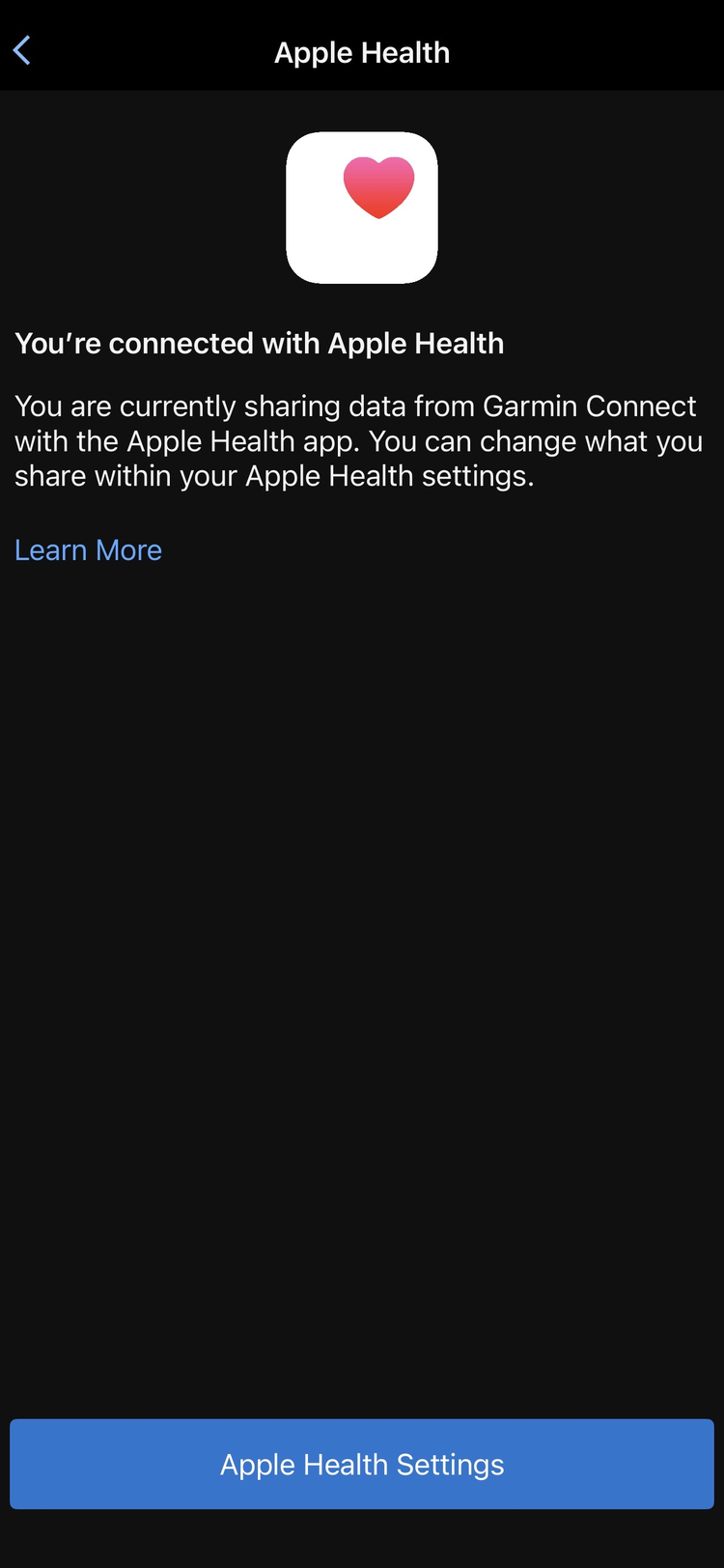
You're set
Done. The Apple Health screen now reads You're connected with Apple Health. After your next workout, open Garmin Connect once so it can pass the activity through.
If it's not working
- Only new activities sync. Workouts recorded before you connected are not backfilled.
- Check permissions later: iPhone Settings > Health > Data Access & Devices > Connect.
Done? Back in Harry's, open Settings > Data & Syncing. The Last sync time updates within a few minutes of your next activity.