Once this is on, your eligible activities count in Harry's automatically. No screenshots or links.
Harry's reads runs, rides, swims, workouts and calories from Apple Health. Not every challenge uses this data; each challenge in the app shows what it tracks.
-
Open Strava
Open the Strava app on your phone.
-
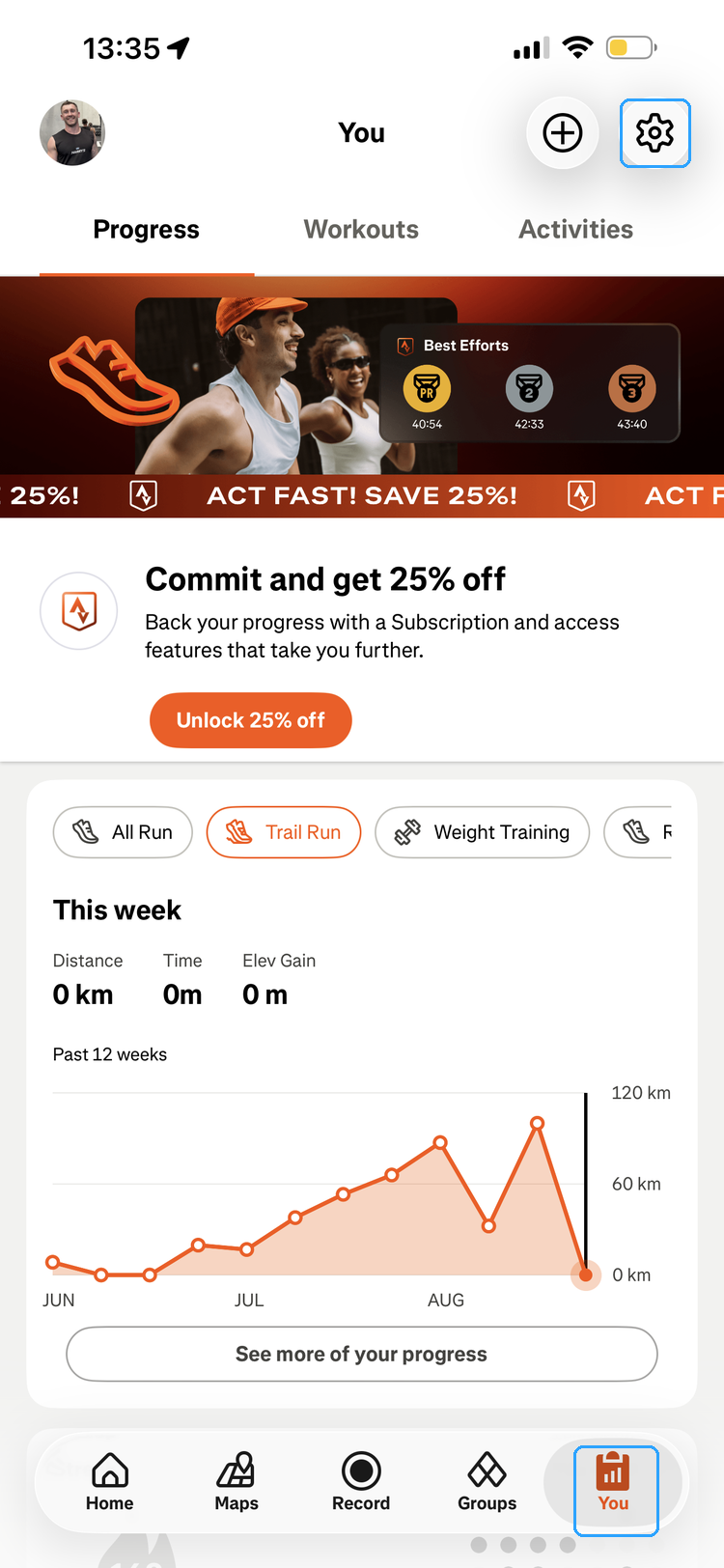
Open settings from the You tab
Tap You in the bottom-right corner, then the settings gear in the top-right.
-
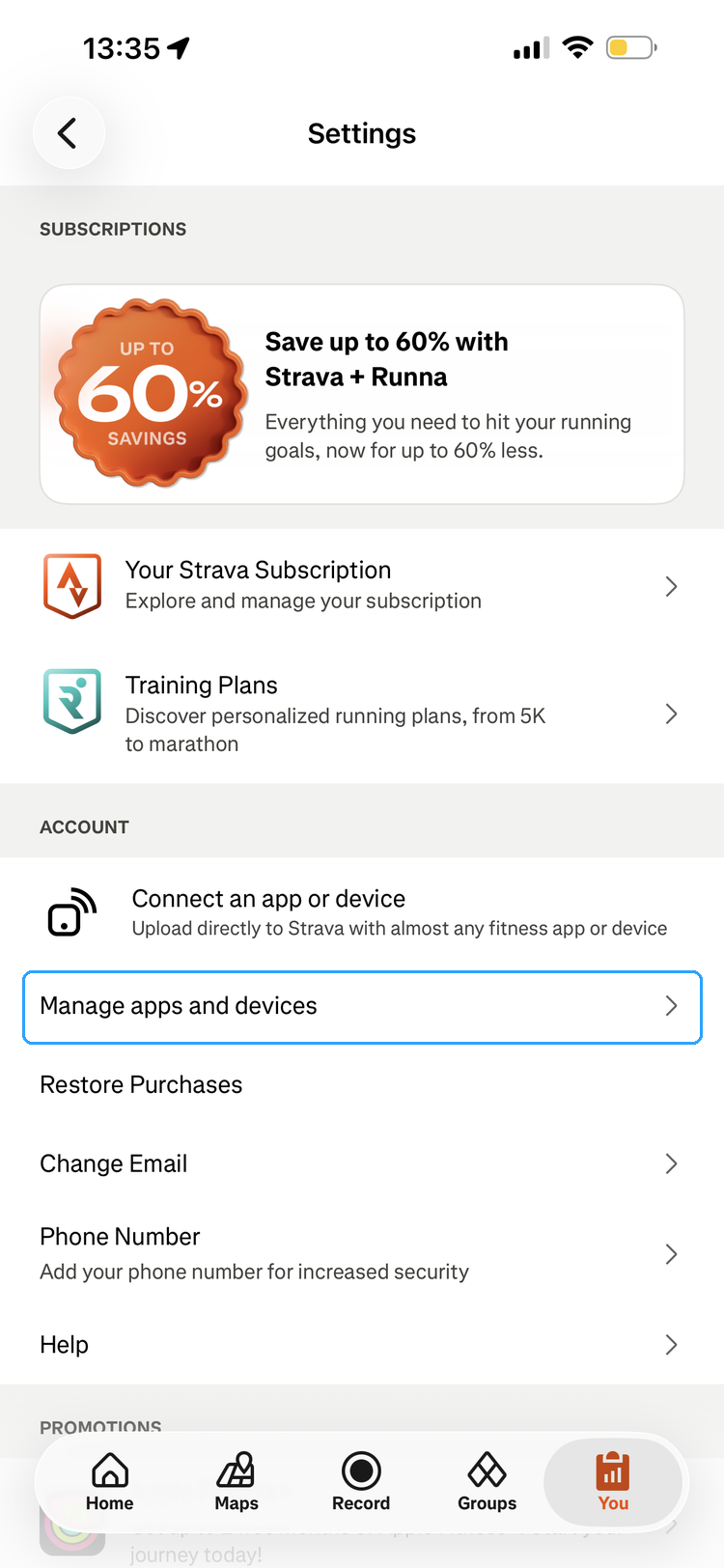
Tap Manage apps and devices
Scroll down and tap Manage apps and devices.
-
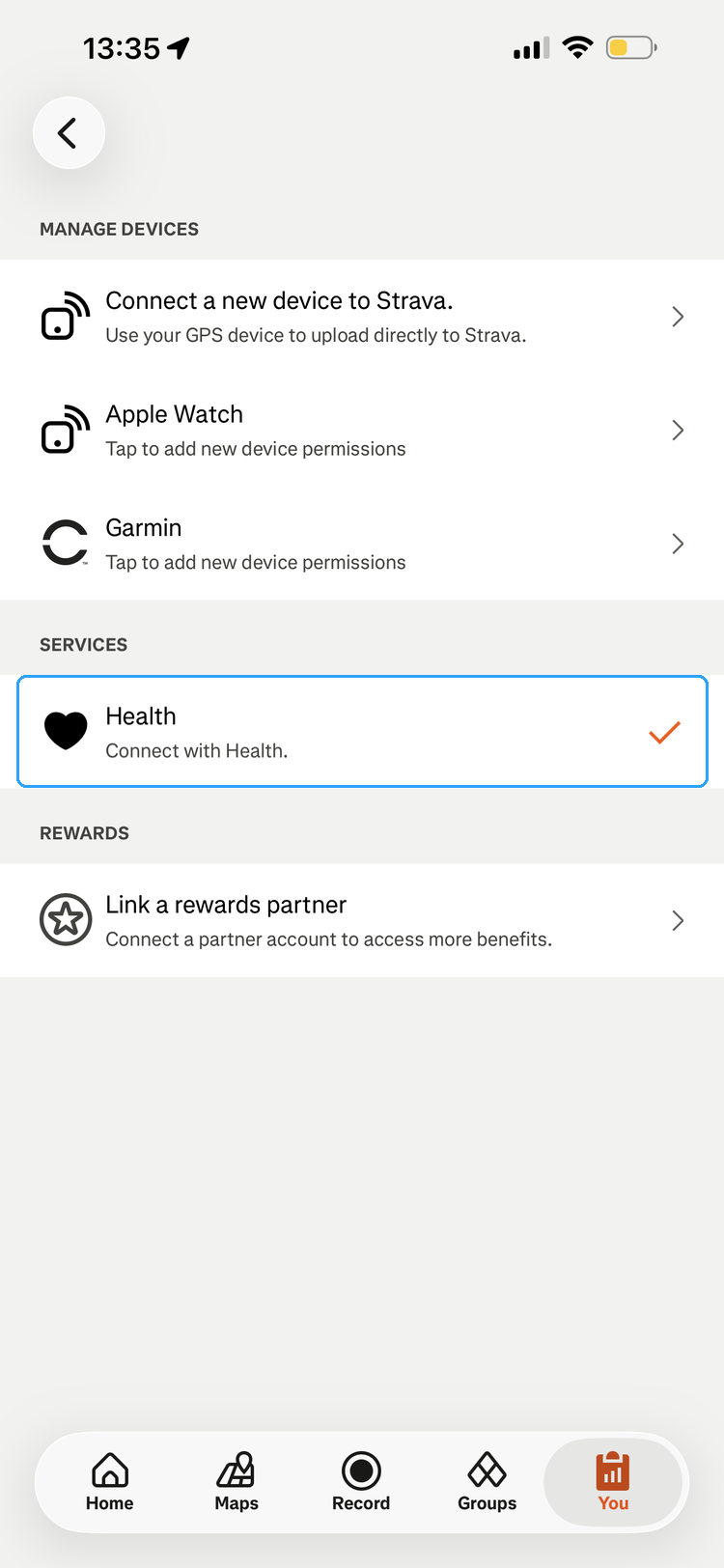
Tap Health under Services
Under Services, tap Health. If it's not already connected, tap Connect and allow access on the permission screen, with Workouts & Routes enabled.
-
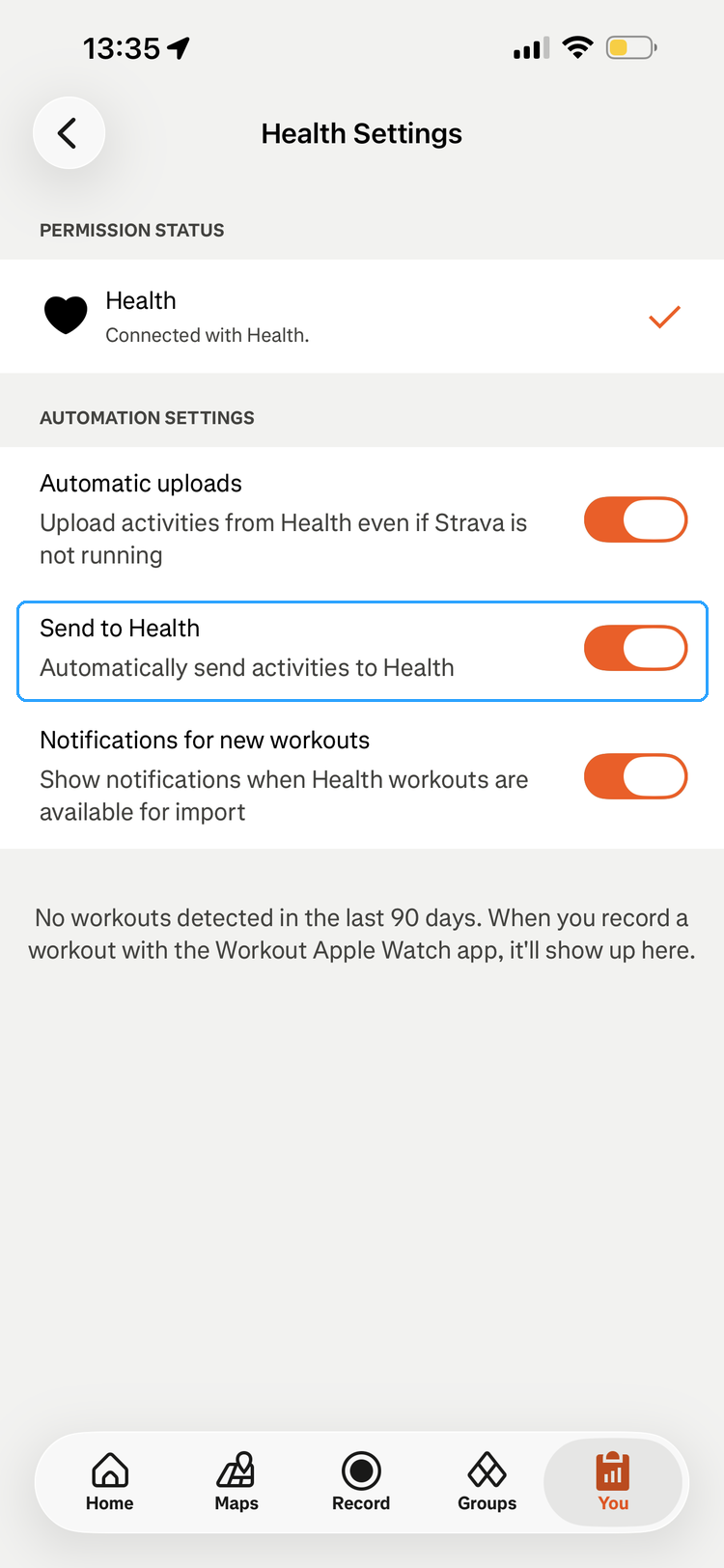
Turn on Send to Health
On the Health Settings screen, make sure Send to Health is on. That's the switch that sends your Strava activities into Apple Health, where Harry's reads them. Automatic uploads works in the other direction and is optional.
If it's not working
- What syncs: activity type, distance, time, calories and route, for Strava-recorded activities only.
- Duplicates are blocked automatically by matching date and time.
- Still not syncing? In Strava's settings, scroll down to Health Data and make sure Health-Related Data says Access Allowed.
- Check permissions later: iPhone Settings > Health > Data Access & Devices > Strava.
Done? Back in Harry's, open Settings > Data & Syncing. The Last sync time updates within a few minutes of your next activity.